
· 7 min read
App screen recording video vs animated scenes: which to use
When an app screen recording video works, when animated or illustrated scenes work better, and how to mix both so the real app appears at the end.
- video production
- short-form video
- app store
- app marketing
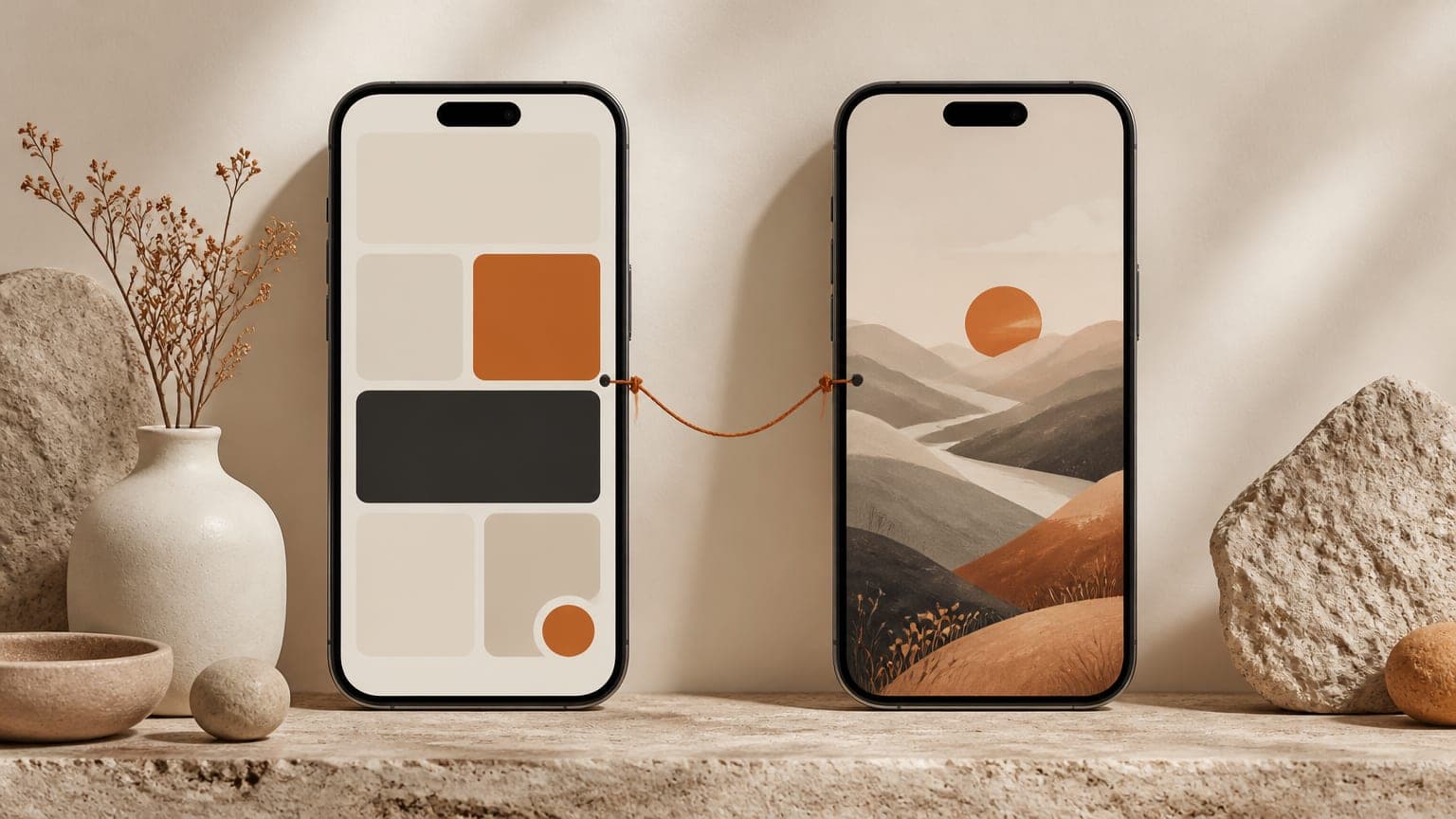
An app screen recording video works best when your app's result is visual and fast, and when the viewer already understands the problem it solves. Animated or illustrated scenes work better for the opening seconds of a social video, where you need to show the moment the problem happens and how it feels. For most apps, the strongest option is a mix: scenes for the hook and the problem, and the real app shown at the end.
What counts as a screen recording, and what counts as animated?
A screen recording is footage captured directly from the device while someone uses the app. On iPhone, the built-in Screen Recording control does this. The raw clip is usually trimmed, sometimes zoomed in, and paired with a voice-over or on-screen text.
Animated or illustrated scenes are everything that isn't the interface: illustrations, 3D scenes, motion graphics, generated imagery or simple shots of objects. A dark bedroom with a phone glowing on the nightstand is a scene. So is a slowly moving illustration of a crowded calendar.
Neither one is better in general. They do different jobs, and the job depends on where in the video you are and who's watching.
When do raw screen recordings work best?
Screen recordings are proof. They show exactly what the app does, with nothing added. That's most useful when:
- The result is visible in seconds. A blurry photo turning sharp, a receipt becoming an expense line, a messy list sorting itself. If the "after" lands within a few seconds, a recording shows it better than any illustration.
- The interface is the selling point. If people choose your app because of how it feels to use, show it being used.
- The viewer already knows the problem. People on your App Store product page, your website or a tutorial have already decided they care. They want to see the app, not a story about why they need it.
- You're teaching something. How-to content needs the real taps in the real order.
Where screen recordings fall short
- They show the solution before the problem. In a feed, viewers haven't decided to care yet, so an interface in the first second reads as an ad.
- They can't show the moment. Your app might help at 3 a.m. or on a crowded train, but a recording only shows a screen.
- Many apps look alike. Lists, cards and buttons blur together, and a stranger can't tell your app from the last one they scrolled past.
- Small details get lost. A phone screen shown on a phone screen is small. Without zooming in, the key detail is often unreadable.
- They go stale. Every redesign makes old recordings inaccurate.
When do animated or illustrated scenes work better?
Scenes are about context. They show the viewer's world, which makes them strongest at the start of a video and for apps whose value doesn't show up on screen.
- The hook and the problem. A scene can show the exact moment the problem happens: the alarm going off for the third time, the fridge at 7 p.m. That's what makes a viewer think "that's me".
- Value you can't see in the interface. Calm, focus, privacy, better sleep or a habit that sticks don't show up in a screenshot. A scene can show what they feel like.
- Plain interfaces. If your app is a clean list or a simple timer, the interface won't carry a 30-second video. A scene can.
- Abstract ideas. An insight line like "you don't need more reminders, you need fewer" is easier to show as a scene than as a screen.
- Several languages. Scenes without text can be reused across languages. Only the voice-over and subtitles change, while a recording with interface text needs a new take for each language.
Where scenes fall short
- They can look generic. A scene that fits any app tells the viewer nothing about yours.
- They can overpromise. If a scene suggests a feature, it's a promise. Keep scenes about the viewer's situation, not about things the app supposedly does.
- They take effort. Hand-made animation is slow. Generated scenes are faster, but you still need to direct them so they look like one consistent video.
- Realistic AI imagery may need a label. Several platforms ask you to label AI-generated content that looks real. Rules differ and change, so check each platform's current policy.
Screen recording vs animated scenes: side-by-side comparison
| Screen recording | Animated or illustrated scenes | |
|---|---|---|
| Best at | Showing exactly what the app does | Showing the moment and the feeling |
| Where it fits in a video | Solution and app beats | Hook, problem and insight beats |
| Best audience | People who already know the problem | People who don't know they need an app yet |
| Strongest placement | App Store previews, tutorials, your website | Openers on TikTok, Reels and Shorts |
| Effort | Quick to record, slower to edit well | Higher, unless scenes are generated |
| Goes out of date | Whenever the interface changes | Slowly, as long as it doesn't show the interface |
| Main risk | Looks like every other app | Looks generic or promises too much |
| Other languages | Re-record if the interface shows text | Reuse scenes, swap voice and subtitles |
How to mix both: scenes first, the real app at the end
The mix that works for most apps follows the order of a viewer's attention. First they need to recognize themselves, then they need to see that the app is real. Mapped onto the 5-beat video structure, it looks like this:
| Beat | What's on screen | Example for a fictional habit tracker |
|---|---|---|
| Hook | A scene of the moment | Running shoes by the door, still clean in March |
| Problem | A scene of the cost | A wall calendar with the first week crossed off and nothing after |
| Insight | A scene of the reframe | One small step, glowing, on an empty staircase |
| Solution | The real app | A short recording or screenshot of checking off today's habit |
| App | Icon, screenshot, call to action | The real icon, a real screenshot, "Get it on the App Store" |
A few things keep the switch from scenes to interface smooth:
- Share a palette. Pull the scene colors from your icon and screenshots, so the app feels like part of the same video.
- Cut on the turn in the script. The solution line often starts with "So" or "That's why". Cut to the app right there.
- Bridge with a phone. A scene can end on a phone lighting up, and the next shot is that screen.
- Show one action, not a tour. One clear moment in the app beats five quick screens.
If you don't have recordings, real screenshots work for the last two beats. Zoom or pan slowly to give them motion. The guide to repurposing App Store screenshots covers this in more detail.
How to record a clean app screen recording
- Use demo data that looks real. Realistic names, amounts and dates, never placeholder text and never real users' data.
- Tidy the device. Turn on Do Not Disturb so notifications don't appear, charge the battery and close other apps.
- Plan the path. Write down every tap from start to result, then rehearse it a few times.
- Move slower than feels natural. Pause briefly on each screen so viewers can follow.
- Record more than you need. Trim to the few seconds that show the result.
- Zoom in on what matters. Crop or scale up the area where the change happens, so it's readable on a phone.
- Fit the 9:16 frame. Recent iPhone screens are a little taller than 9:16, so crop slightly or place the recording on a background.
- Say what's happening. One spoken line or one line of text per action, so the clip makes sense with the sound off.
Which should you choose for your app?
Ask two questions. First, who will watch: strangers in a feed, or people who already know your app? Strangers need a scene first. People on your product page want the app.
Second, how fast is your app's result? If it's visible in a few seconds and looks satisfying, a recording can carry more of the video. If it takes days to show (better sleep, saved money, a habit that sticks), scenes need to carry the story and the app shows up at the end.
For most social videos about most apps, the answer is the mix: scenes for the first three beats, the real app for the last two. If you're not filming yourself either, this is also the backbone of most faceless app marketing videos.
Where ReelMyApp fits
ReelMyApp's shorts follow this mixed approach. Each one has five scenes in a fixed order (Hook, Problem, Insight, Solution and App), so the problem is set up before the app arrives. It works from your App Store or Google Play listing, including the icon and screenshots, rather than from a screen recording, so there's nothing to record. You paste the link, describe your audience in a sentence or two, and get a vertical video of about 30 seconds with an AI voice-over, instrumental music and burned-in subtitles, usually in 5 to 8 minutes. A video costs 50 credits (see pricing).
Key takeaways
- Screen recordings are proof: use them when the result is fast and visual, or when viewers already know the problem.
- Animated or illustrated scenes are context: use them to show the moment, the feeling and value that doesn't appear on screen.
- For social video, the strongest mix is usually scenes for the hook, problem and insight, then the real app for the solution and the final beat.
- Keep scenes about the viewer's situation so they never suggest features the app doesn't have.
- Record cleanly: realistic demo data, Do Not Disturb, slow taps, a zoom on what matters and a 9:16 frame.
Frequently asked questions
Should my app promo video be a screen recording?
Only if the result is visual and quick. In social feeds, a screen recording usually works better as the second half of a video, after a scene that shows the problem.
How do I make a screen recording on iPhone?
Add the Screen Recording control to Control Center if it isn't there, then open Control Center and tap it. Turn on Do Not Disturb first so notifications don't show up in the recording.
Can I use App Store screenshots instead of a screen recording?
Yes. Real screenshots, zoomed or panned slowly, work well in the final scenes of a social video and stay accurate as long as they match the current version of the app.
Do animated scenes look less trustworthy than real footage?
They can if the whole video is animated. Ending on the real app, with its real icon and screenshots, fixes most of that because viewers see exactly what they'll download.
What aspect ratio should an app screen recording be for TikTok?
Export the video at 9:16. Recent iPhone screens are a little taller than 9:16, so either crop the recording slightly or place it on a background inside the frame.